● Free Online Speaker Tools
Fix My Speaker – Clean Water and Dust From Your Phone Speaker
Muffled calls and quiet music are frustrating. Dust, pocket lint, and water are usually to blame. Our online speaker cleaner helps you clear your phone speaker without taking anything apart. This page explains exactly how our tool works, when it helps, and when you need a repair shop instead.
Remove Water & Dust – Free in 60 Seconds
Keep the speaker away from your ears and start at a moderate device volume.
— Smart 0Works Across All Major Devices
Fix My Speaker Online
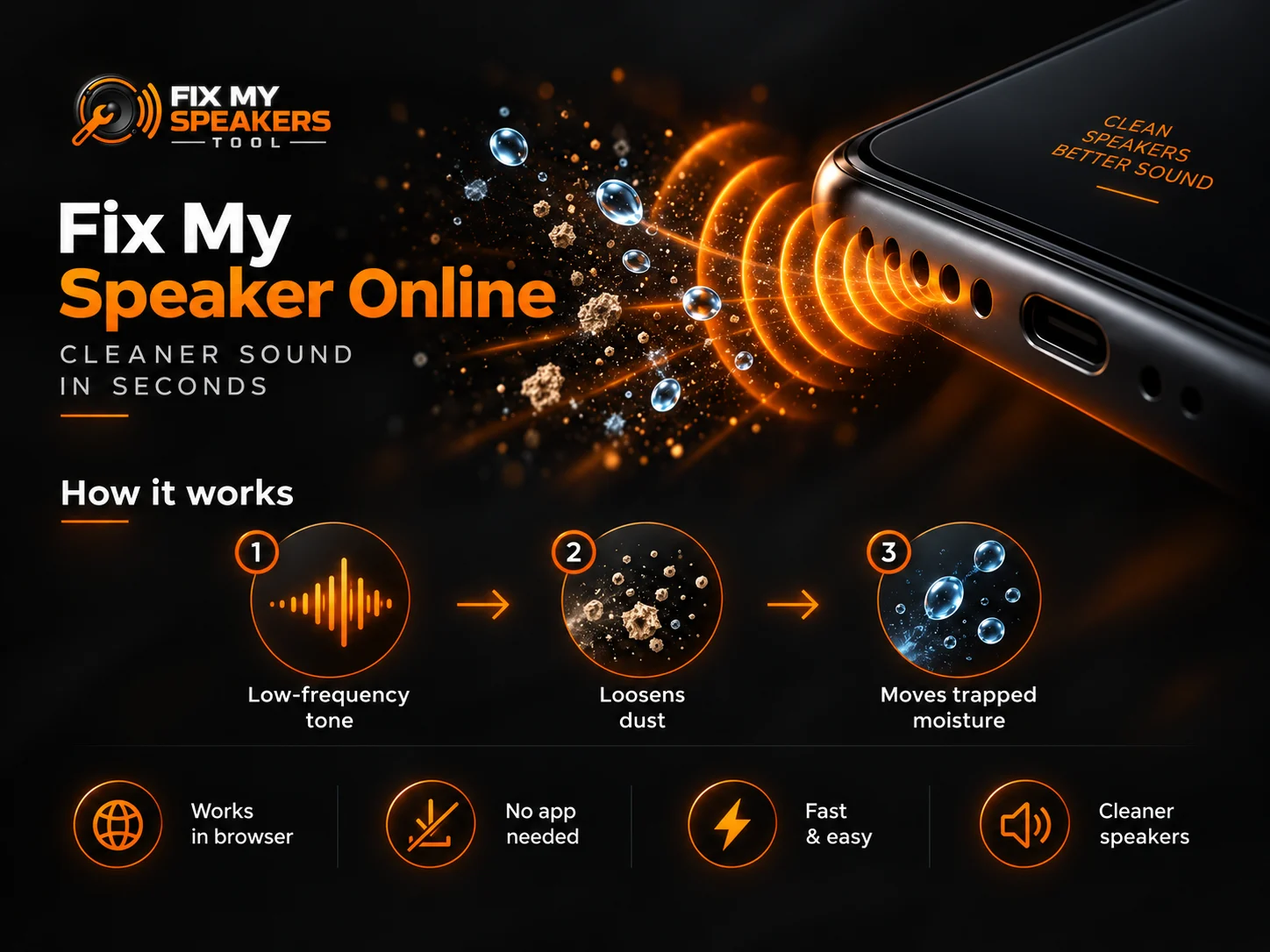
Fix My Speaker runs directly in your browser. It plays a low-frequency cleaning tone that creates speaker movement. The vibration can loosen some debris and move trapped moisture toward the speaker opening.
No app download is needed. You open this page, tap the button, and let the tone do the work. It is a fast first step for speaker problems caused by surface blockages. The Fix My Speaker tool is free, works in any modern browser, and needs nothing installed.
What Does This Tool Do?
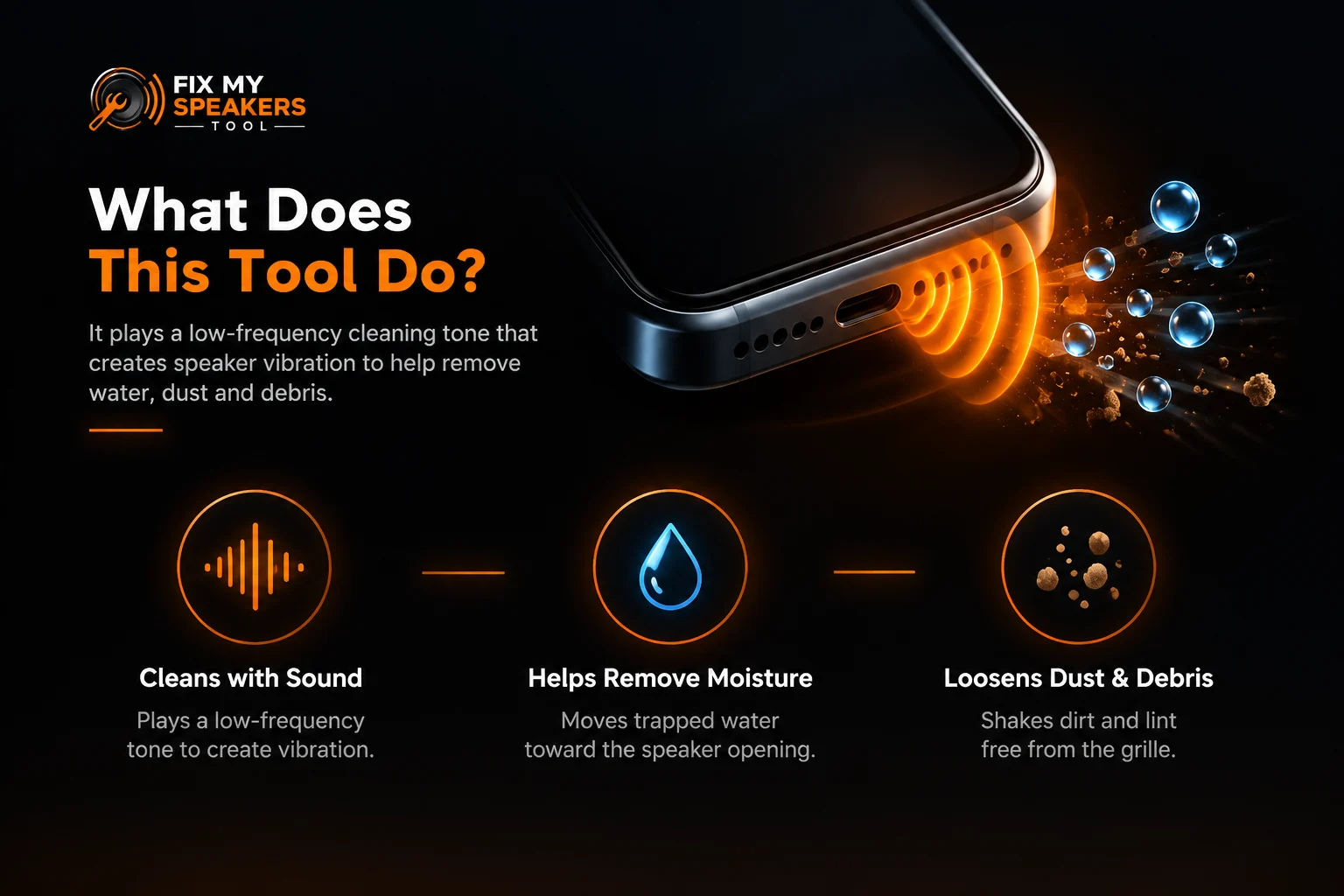
Fix My Speaker is built around a simple idea: sound creates physical vibration. When a speaker plays a targeted tone, the diaphragm moves back and forth. That motion may shake dust loose and move water droplets toward the grille opening. The cleaning tone works without inserting anything into the speaker opening.
Remove Moisture From a Phone Speaker
If your phone took a splash, water can get trapped behind the mesh. Our water eject sound pulses the driver, making the speaker move rapidly. The vibration may shift small amounts of moisture toward the speaker opening.
Important: A speaker cleaning tone only addresses moisture around the speaker. It cannot remove water from the motherboard or repair corrosion or electrical damage.
Clear Dust and Debris From the Speaker
Pocket lint and dirt cling to speaker grilles. Over time, they form a layer that blocks sound waves. Our dust removal sound vibrates the cone at patterns designed to break that buildup free.
You may even see tiny particles fall out of the grille while the tone plays.
Check Your Phone Before Using the Tool
Before running the cleaning tone, rule out simple causes. Both Apple and Samsung recommend checking these basics first Apple Support.
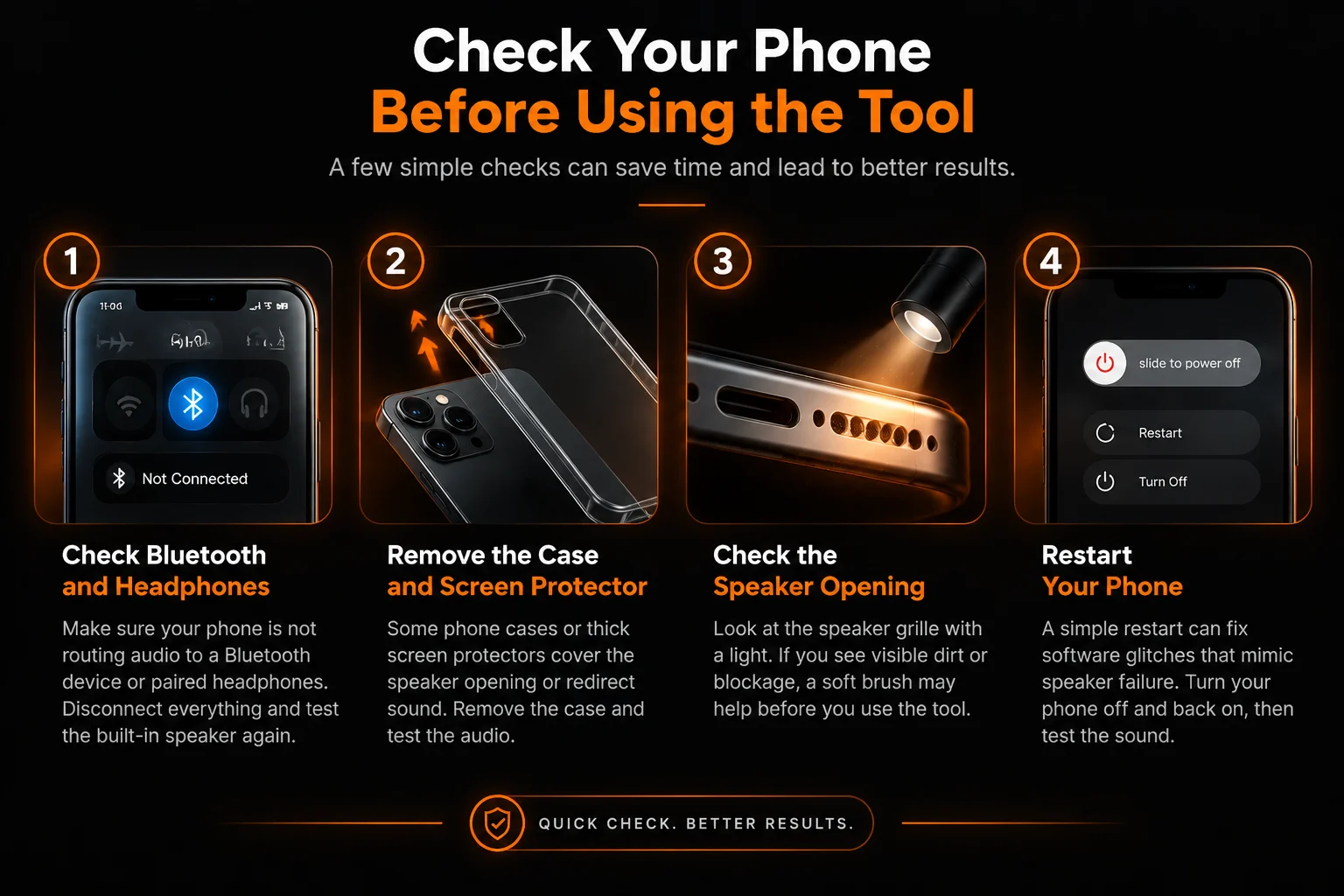
move the Case and Screen Protector
Some phone cases or thick screen protectors cover the speaker opening or redirect sound. Remove the case and test the audio.
Check the Speaker Opening
Look at the speaker grille with a light. If you see visible dirt or blockage, a soft brush may help before you use the tool.
Restart Your Phone
A simple restart can fix software glitches that mimic speaker failure. Turn your phone off and back on, then test the sound.
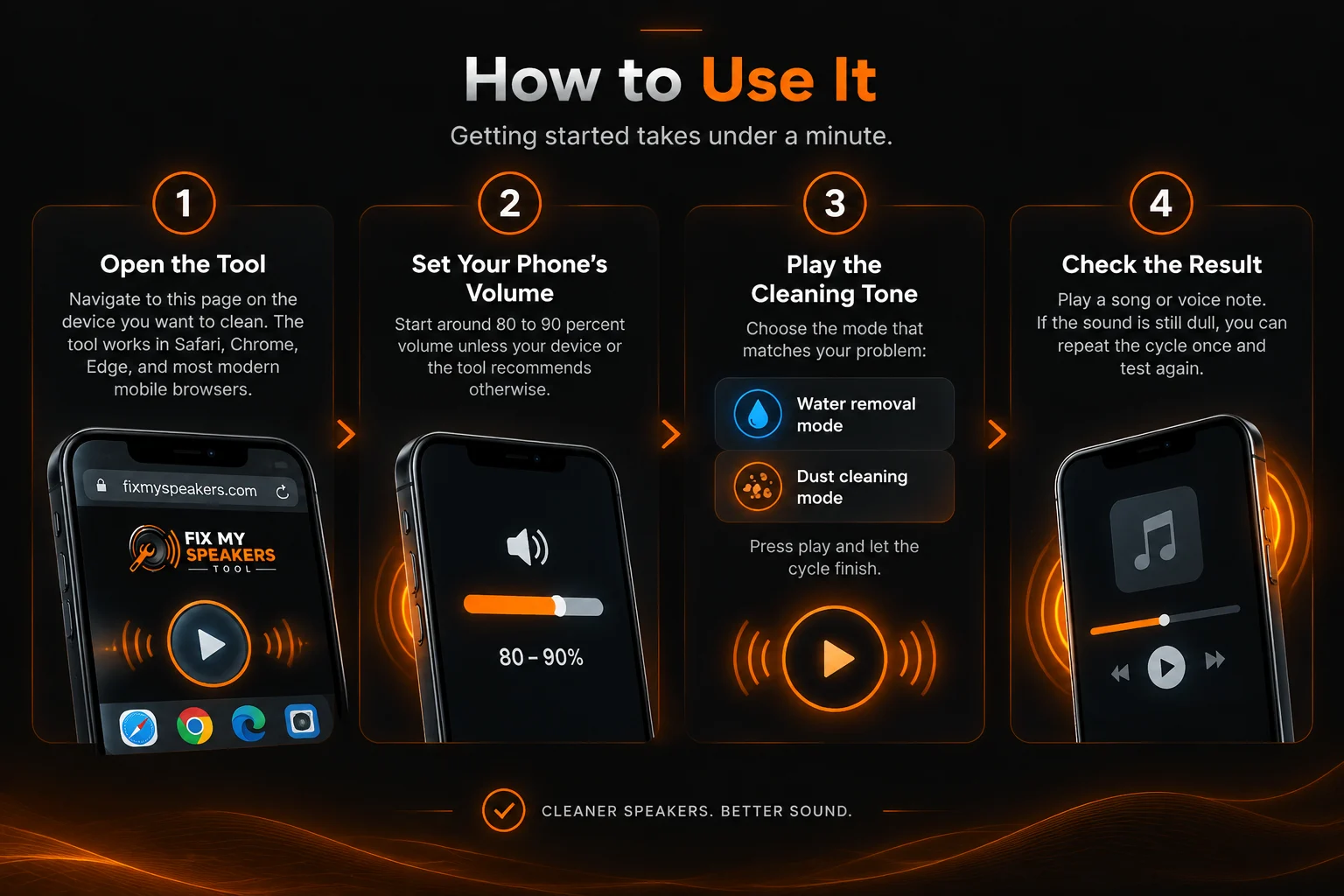
How to Use It
Getting started takes under a minute.
Step 1: Open the Tool
Open Fix My Speaker on the device you want to clean. The tool works in Safari, Chrome, Edge, and most modern mobile browsers.
Step 2: Set Your Phone’s Volume
Set the volume to a comfortable, clearly audible level. Louder is not better — a distorted tone stresses the speaker without clearing anything extra. If the sound becomes harsh, turn it down
Step 3: Play the Cleaning Tone
Choose the mode that matches your problem:
- Water removal mode for recent spills
- Dust cleaning mode for muffled audio from buildup
Press play and let the cycle finish.
Step 4: Check the Result
If the sound is still dull, run Fix My Speaker once more and test again.
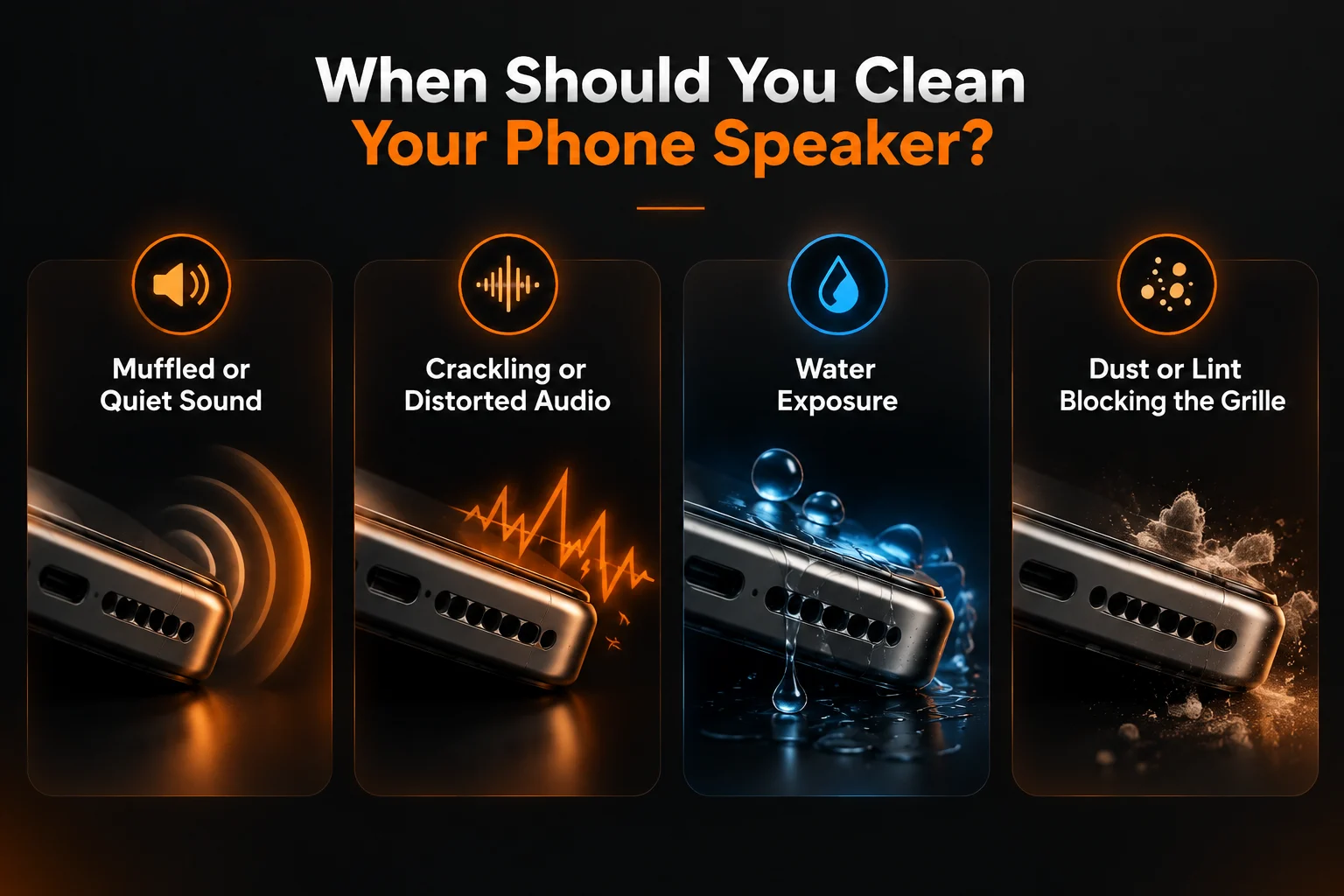
When Should You Clean Your Phone Speaker?
Not every audio problem needs a repair technician. Here are the situations where Fix My Speaker can help.
Muffled or Quiet Sound
If your phone suddenly sounds like it is underwater, the speaker opening may be blocked by dust, lint, or moisture. If blockage is the cause, cleaning often brings the volume back to normal.
Crackling or Distorted Audio
Crackling usually means something is interfering with the driver. It could be a water droplet or a dust particle stuck in the mesh. If dust or moisture is causing the crackling, the tone may clear it without physical contact.
Water Exposure
Dropped your phone in the sink? Caught in the rain? Water in the speaker is a common problem. Drying the device promptly can help reduce the risk of further liquid-related problems.
Dust or Lint Blocking the Grille
If you work in dusty environments or keep your phone in your pocket, lint buildup is inevitable. Regular cleaning keeps dust and lint from building up around the grille.
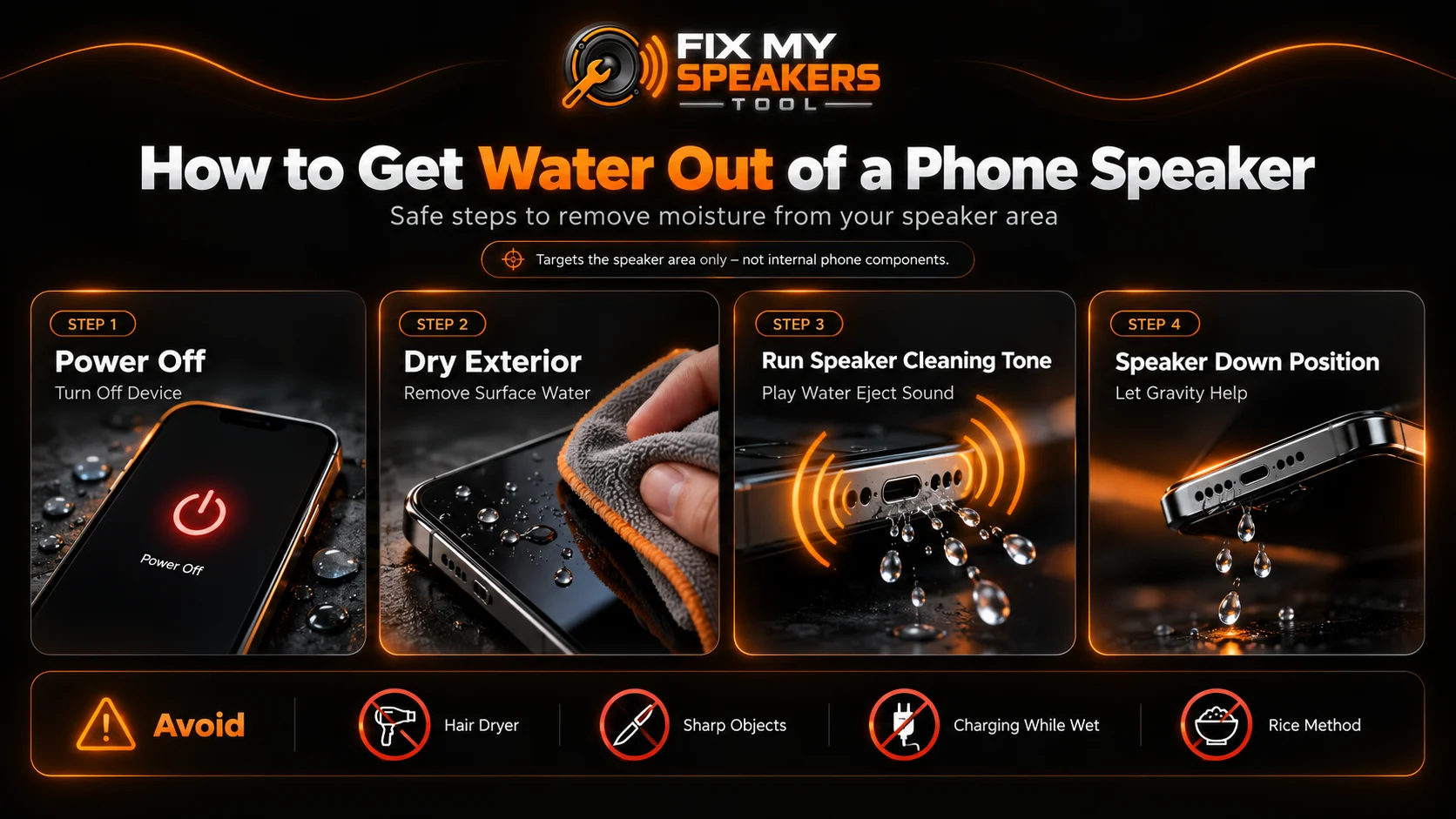
How to Get Water Out of a Phone Speaker
Water exposure is stressful. Here is how to handle it properly.
What to Do After Your Phone Gets Wet
First, turn off your device if possible. Wipe the exterior with a dry cloth. Do not charge it immediately. Then open our tool and run the water removal mode. Tilt your phone so the speaker grille faces downward while the tone plays. Gravity helps.
Remember: this tool only targets the speaker area, not internal components.
Can Sound Help Move Water Out?
Yes, in some cases. Sound waves create mechanical vibrations in the driver. These vibrations may shift small amounts of moisture toward the grille opening.
Some devices use speaker vibration to help move water from the speaker opening.
However, sound alone cannot dry the internal circuitry. It only addresses the speaker chamber.
What to Avoid After Water Exposure
- Do not use a hairdryer. Heat can damage adhesives and seals.
- Do not insert objects into the speaker hole. Toothpicks and needles can puncture the membrane.
- Do not shake your phone violently. This can spread water to other components.
- Do not charge your phone until it is dry. Charging while wet risks short circuits.
Do Not Put Your Phone in Rice
Rice is not a safe drying method for a wet phone. Small particles can enter openings and cause additional problems. Let the phone dry naturally according to the manufacturer’s instructions Apple Support.
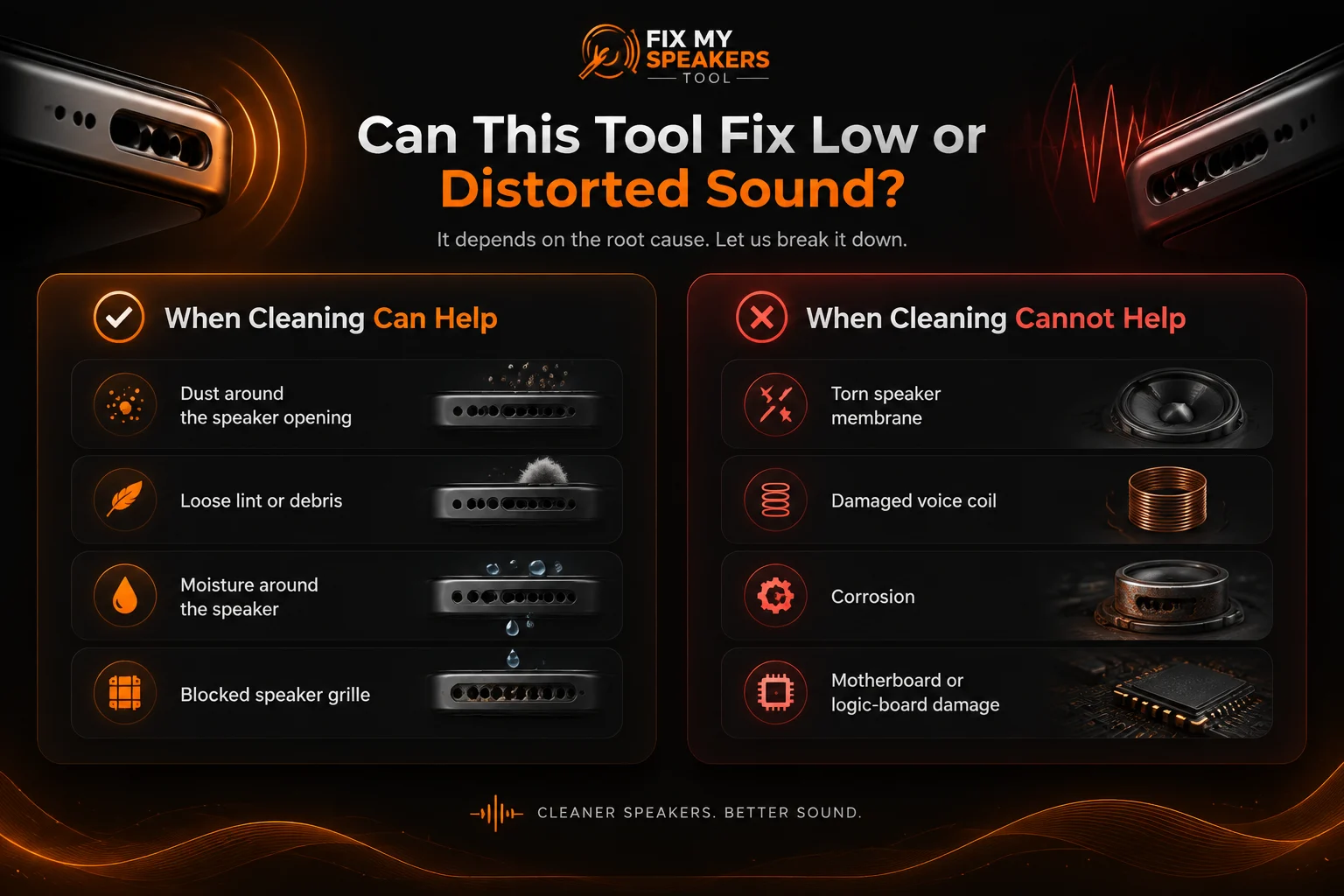
Can This Tool Fix Low or Distorted Sound?
It depends on the root cause. Let us break it down.
| When Cleaning Can Help | When Cleaning Cannot Help |
| Dust around the speaker opening | Torn speaker membrane |
| Loose lint or debris | Damaged voice coil |
| Moisture around the speaker | Corrosion |
| Blocked speaker grille | Motherboard or logic-board damage |
When Cleaning Helps
When dust, lint, or moisture is the cause, the cleaning tone is designed for that type of blockage. A cleaning tone is intended to help when moisture or loose debris is affecting the speaker.
This is especially true for:
- Dust accumulation over weeks or months
- Recent water exposure
- Pocket lint blocked the earpiece or front speaker
If you have noticed weak bass or thin audio, a blocked grille is often the culprit. Once the path is clear, the full frequency response can return.
When Cleaning Cannot Help
If the speaker itself is damaged, no amount of cleaning will fix low speaker volume. Software issues, driver problems, or Bluetooth connection errors also will not respond to a cleaning tone. If you have tried the tool multiple times with no success, the problem is likely deeper.
Signs of Hardware Damage
Look for these red flags:
- No sound at all, even at maximum volume
- Persistent rattling that does not improve with cleaning
- Sound only works through headphones or Bluetooth
- Visible physical damage to the speaker grille
In these cases, you need professional repair.
Which Devices Can You Use It On?
Our speaker cleaner works on most devices with a speaker and a browser.
iPhone and iPad
Fix My Speaker works in Safari on iPhone and iPad. If your iPhone speaker sounds muffled, first check the speaker and receiver openings for dirt or blockage. Apple recommends a small, clean, dry, soft-bristled brush when cleaning is necessary (Apple Support). For moisture-related muffling, you can also try our audio cleaning tone. The front speaker mode is designed for devices where the earpiece speaker has a fine mesh opening.
Android Phones
Fix My Speaker plays on most Android phones, including Samsung, Google Pixel, and OnePlus models. Results can vary by speaker design. If you are trying to clear the call speaker on a Galaxy or Pixel, run the tone with the earpiece facing down.

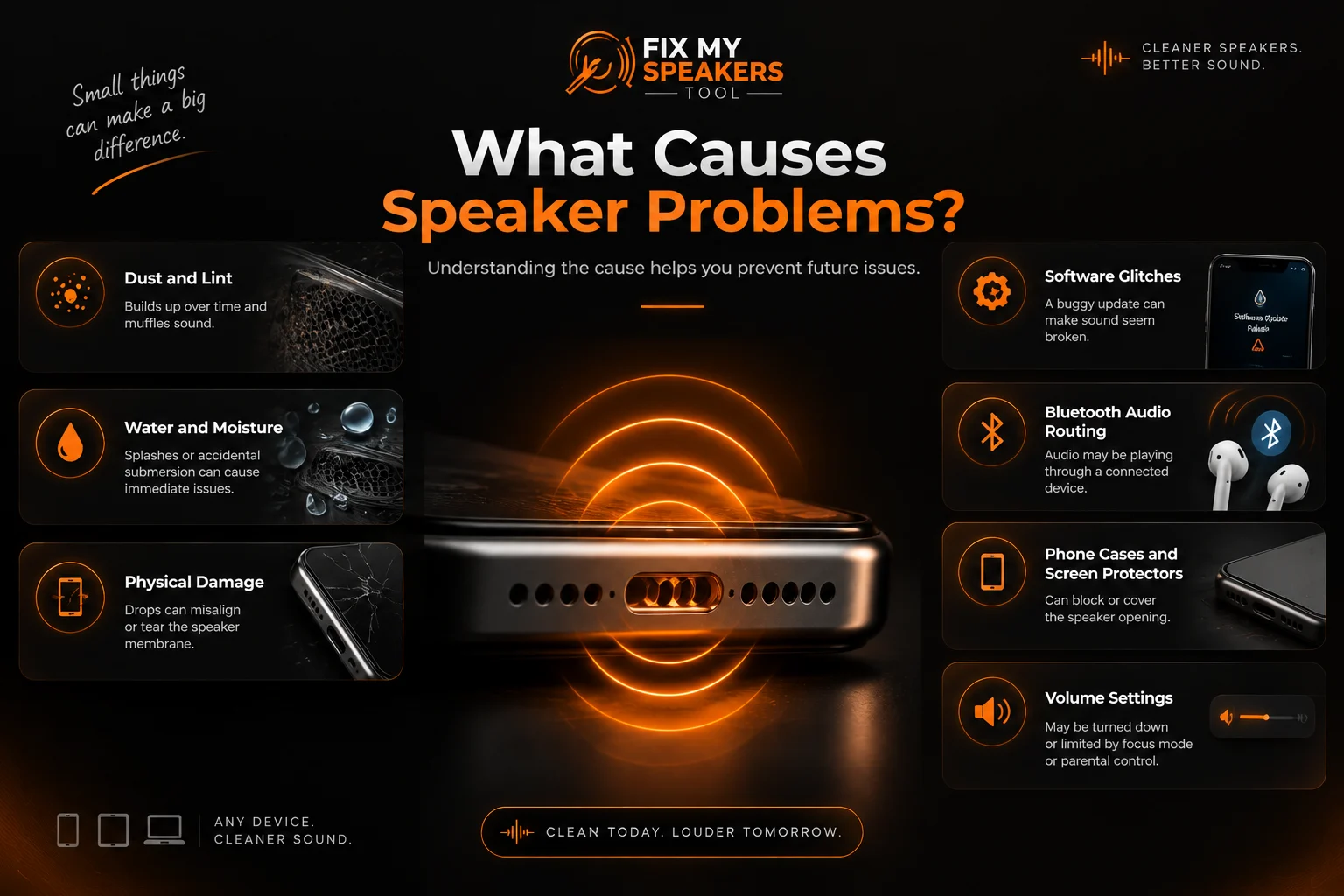
What Causes Speaker Problems?
Understanding the cause helps you prevent future issues.
Dust and lint are the most common enemies. They accumulate in pockets, bags, and dusty environments. Over time, they form a layer that muffles sound.
Water and moisture cause immediate problems. Even water-resistant phones are not waterproof. Splashes, rain, and accidental submersion can leave droplets inside.
Physical damage from drops can misalign the speaker cone or tear the membrane. This causes distortion that cleaning cannot fix.
Software glitches sometimes mimic hardware problems. A buggy update or corrupted audio driver can make sound seem broken when the speaker is actually fine.
Bluetooth audio routing can make it seem like the built-in speaker is broken when audio is actually playing through a connected device.
Phone cases and screen protectors can block or cover the speaker opening.
Volume settings may be turned down or limited by a focus mode or parental control.
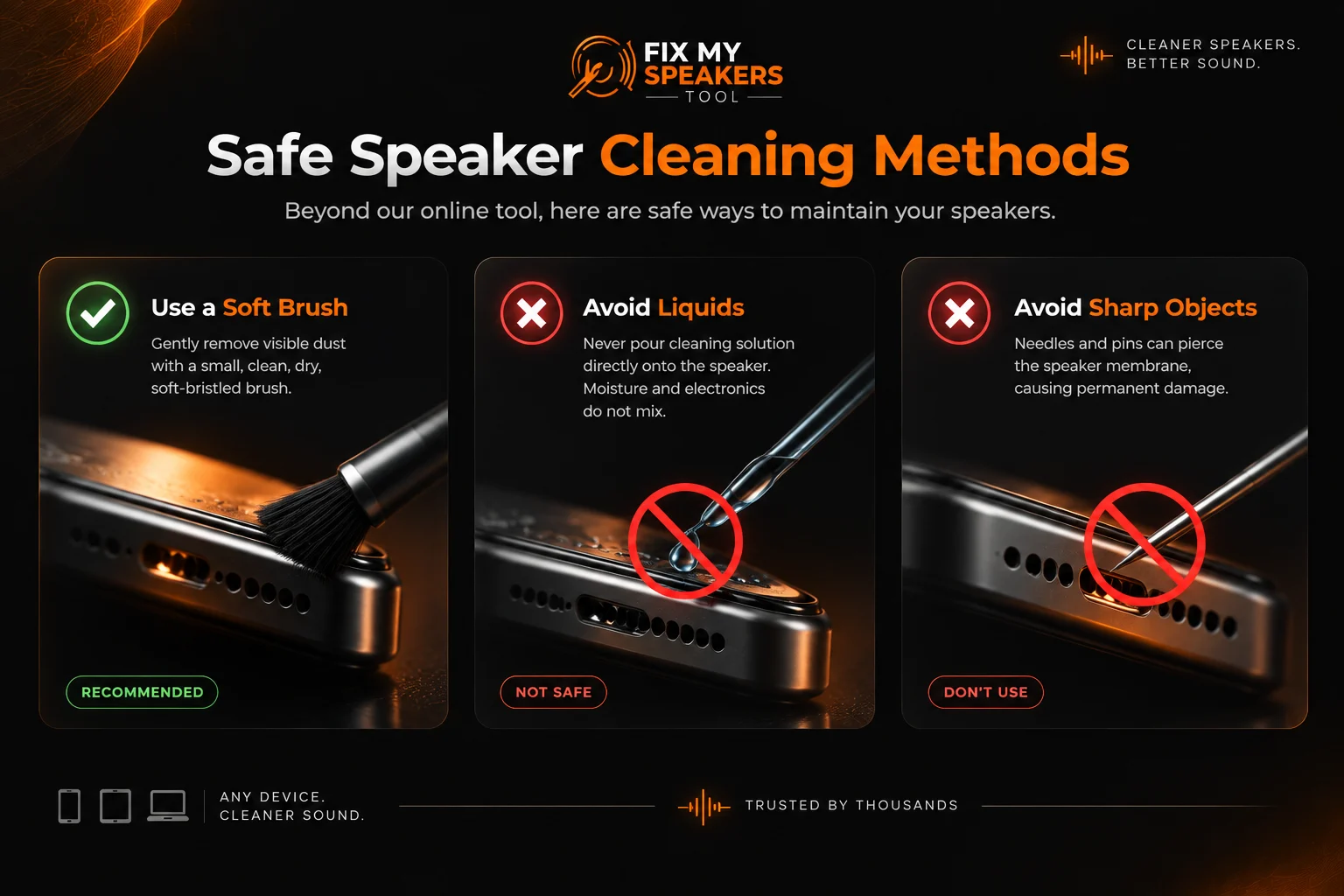
Safe Speaker Cleaning Methods
Beyond our online tool, here are safe ways to maintain your speakers.
Soft brush: Apple specifically recommends a small, clean, dry, soft-bristled brush to gently remove visible dust from the speaker opening. Use light pressure Apple Support.
Avoid liquids: Never pour cleaning solution directly onto the speaker. Moisture and electronics do not mix.
Avoid sharp objects: Needles and pins can pierce the speaker membrane, causing permanent damage.
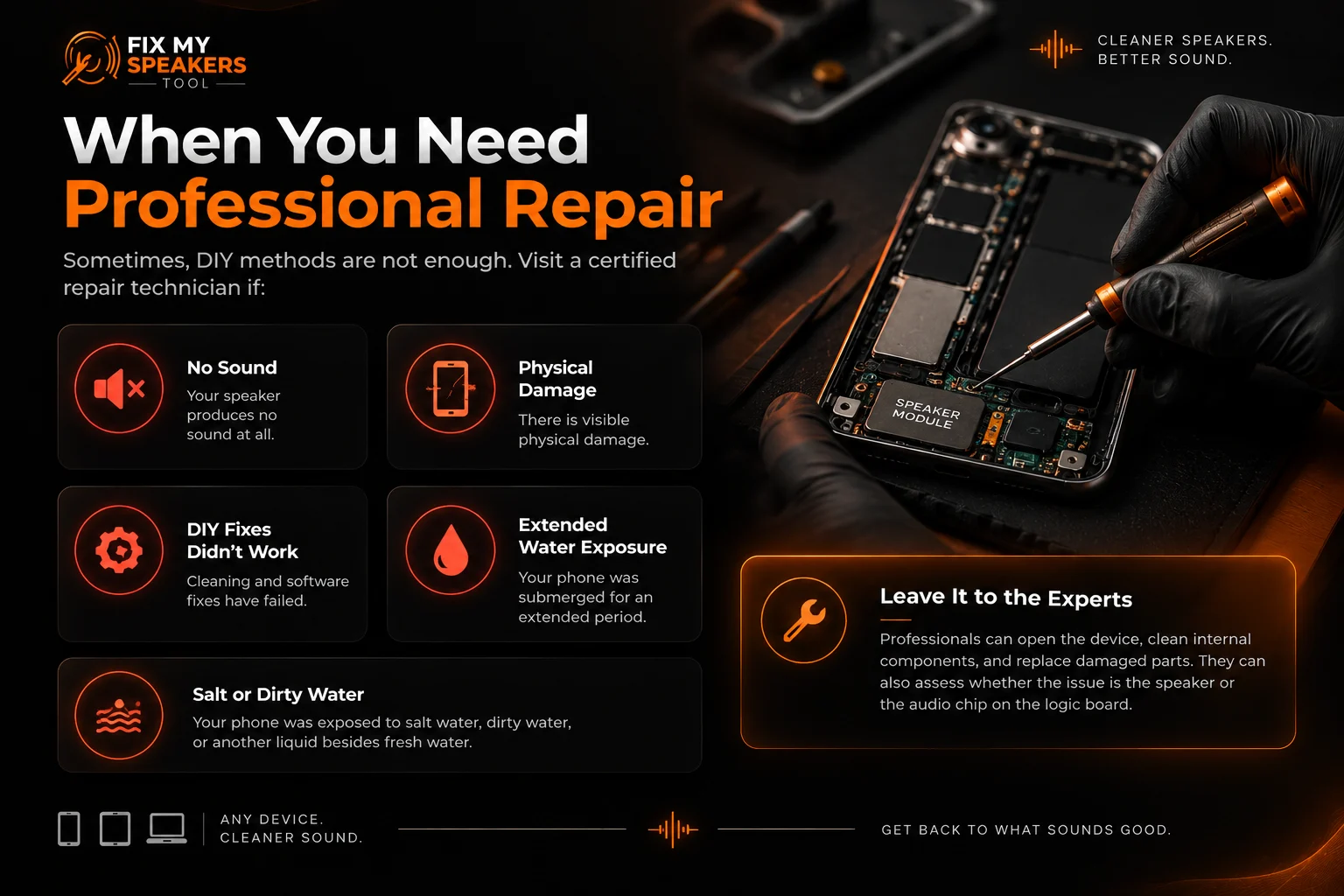
When You Need Professional Repair
Sometimes, DIY methods are not enough. Visit a certified repair technician if:
- Your speaker produces no sound at all
- There is visible physical damage
- Cleaning and software fixes have failed
- Your phone was submerged for an extended period
- Your phone was exposed to salt water, dirty water, or another liquid besides fresh water
Professionals can open the device, clean internal components, and replace damaged parts. They can also assess whether the issue is the speaker or the audio chip on the logic board.
Frequently Asked Questions
Frequently Used Speaker Guides
Our content covers these speaker-related topics:
- How to Clean iPhone Speaker and Earpiece
- How to Remove Water from Phone Speaker on Android
- How to Clean Dust from Mobile Speaker Without Opening Your Phone
- How to Fix Phone Speaker Water Damage
- Why Do My AirPods Sound Muffled and How to Clean Them
- How to Clear Phone Speakers After a Beach or Pool Day
These guides provide device-specific steps and troubleshooting tips.